How to Use Video Popout in Opera GX: The Ultimate Multitasking Guide


Asif Mohammad Sovon
Asif Mohammad Sovon, IT Assistant at Bangladesh Air Force and Fileion tech writer, simplifies tech t...
What is the Video Popout Feature?
Step-by-Step Guide: How to Pop Out Video Opera GX
4. Customization & Optimization
Click here to download Opera GX browser
Q1: Can I pop out live streams on Twitch?
Q2: Does the video stop if I minimize the browser?
Q3: Why don't I see the popout button?
Have you ever tried to watch a YouTube tutorial or a Twitch stream while working in a different tab? Usually, as soon as you switch tabs, you lose sight of the video. This makes multitasking difficult if you do not have a second monitor.
Opera GX solves this with a built-in Video Popout feature. This tool allows you to detach a video from a webpage and float it anywhere on your screen. You can continue watching your favorite content while browsing, working, or even gaming.
Let’s dive into the basics before moving to the hands-on steps.
What is the Video Popout Feature?
The Video Popout feature in Opera GX is essentially a "Picture-in-Picture" mode. It takes the video player from a specific website and moves it into a standalone, floating window. This window stays on top of other applications and tabs.
Who typically uses it:
Gamers: To watch walkthroughs or streams while playing.
Students: To watch lectures while taking notes on a document.
Professionals: To monitor news or webinars while working.
It creates a seamless multitasking environment. You do not need to split your screen or buy a second monitor to watch and work simultaneously.
Key Features
Always on Top: The popped-out video stays visible even when you switch to different software or tabs.
Resizable Window: You can adjust the size of the video player to fit your screen layout perfectly.
Playback Controls: The floating window includes buttons to pause, play, and skip without needing to return to the original tab.
Transparency Options: You can make the video semi-transparent, allowing it to blend with the content behind it.
Step-by-Step Guide: How to Pop Out Video Opera GX
1. Getting Started
To begin, you need the Opera GX browser installed on your computer. You also need an active internet connection to load a video website.
-
Open Opera GX.
-
Navigate to a video hosting site like YouTube, Twitch, or Vimeo.
2. Initial Setup
By default, this feature is usually enabled. However, it is good to know where the settings are if the button does not appear.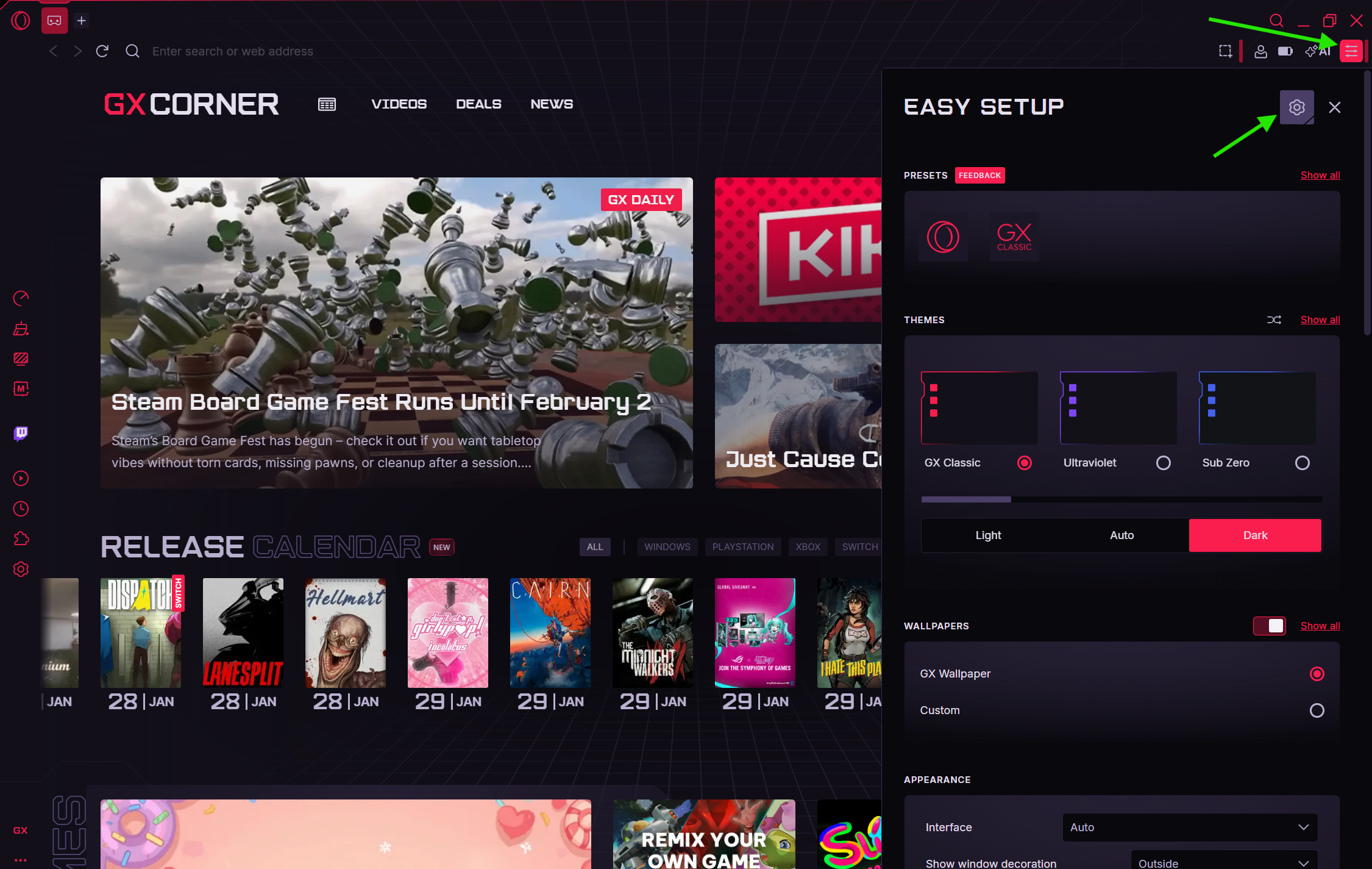
-
Click the Settings icon in the sidebar.
-
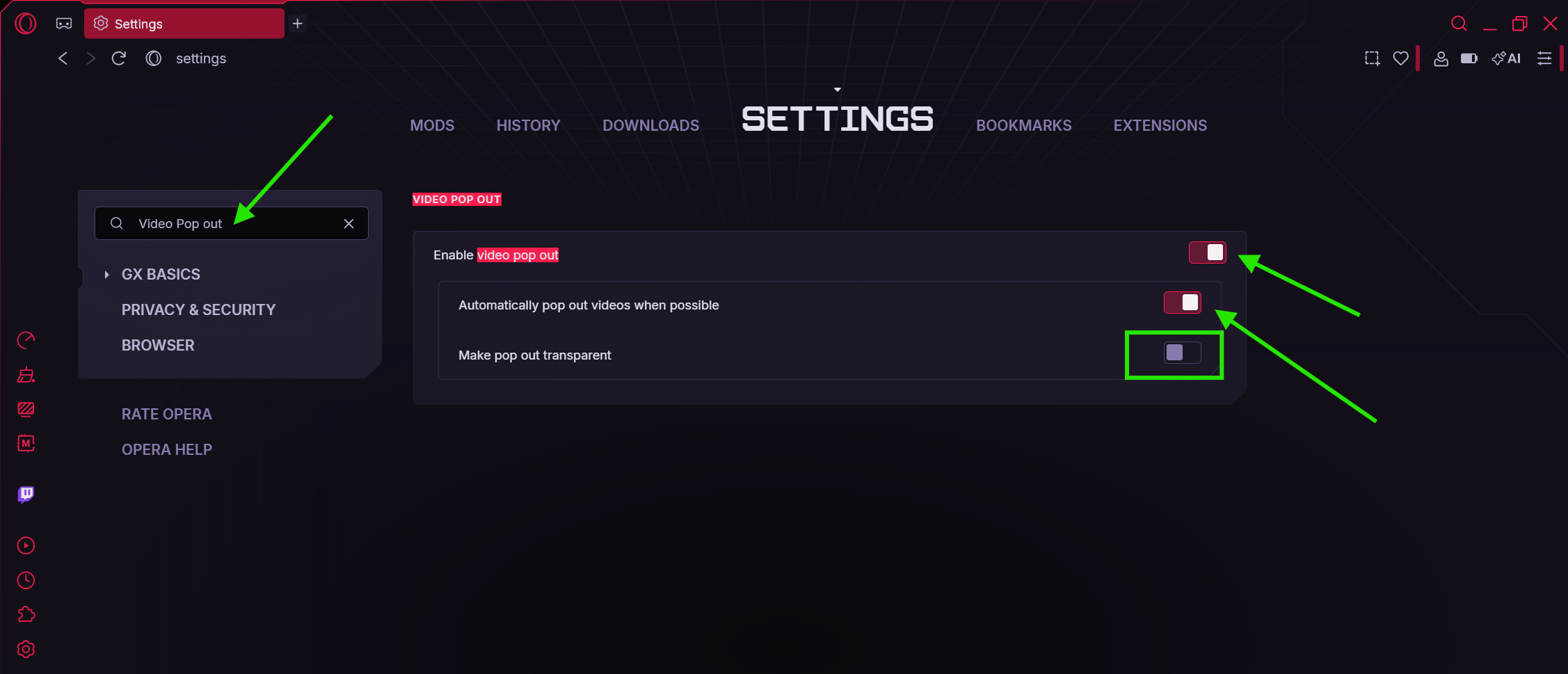
Search for "Video Popout" or "Video pickup" in the search bar.
-
Ensure the toggle for Enable video popout is switched on.
3. Action Step
Once you have a video ready, follow these steps to detach it.
-
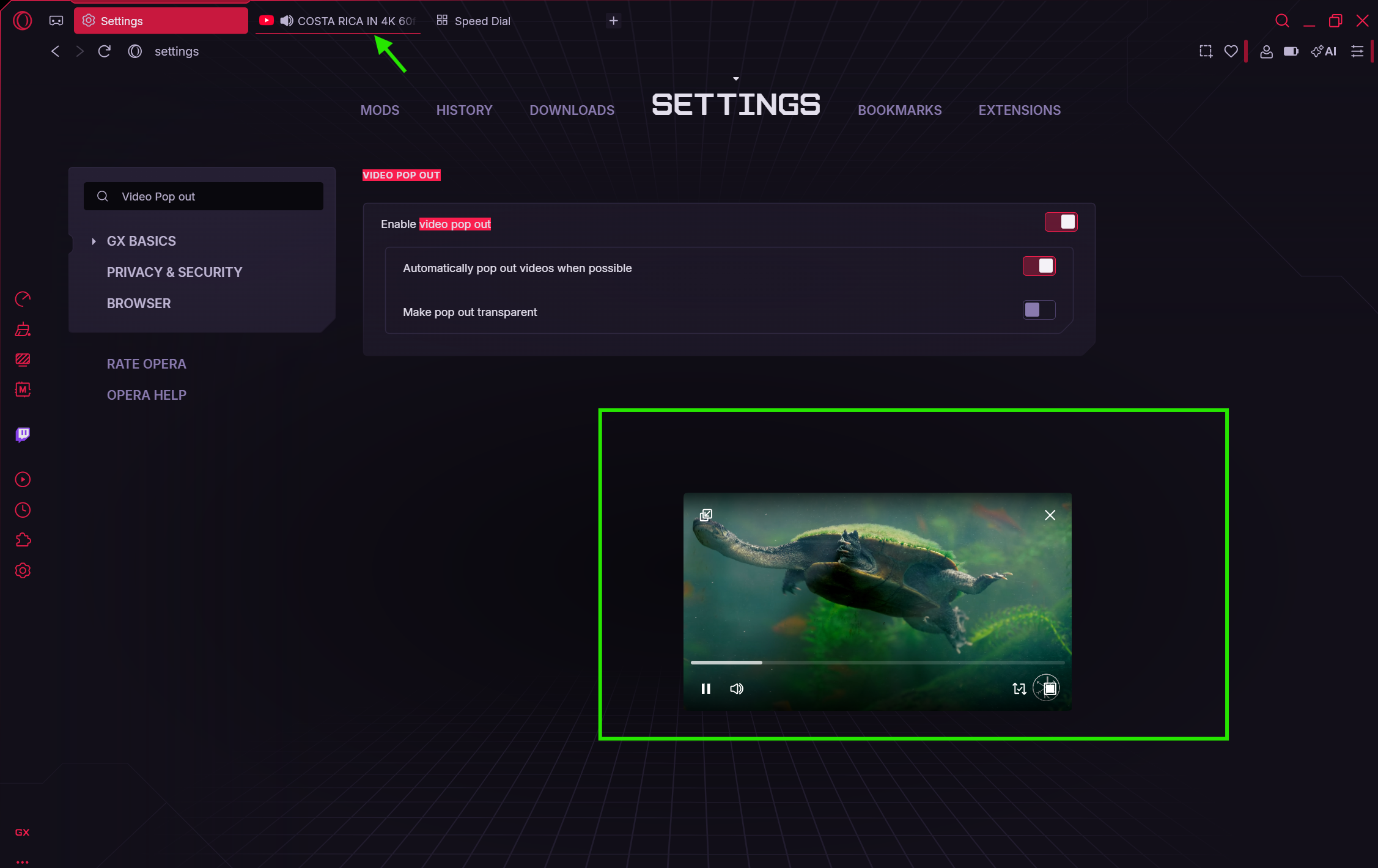
Play the Video: Start the video you want to watch.
-
Hover the Mouse: Move your cursor over the video player.
-
Click the Icon: Look for a small icon (a square with an arrow) in the top-center of the video frame. Click this Video Popout button.
4. Customization & Optimization
Now that the video is floating, you can adjust it to suit your needs.
-
Move: Click and hold anywhere on the floating video to drag it to a different part of your screen.
-
Resize: Click and drag the edges or corners of the window to make it larger or smaller.
-
Control: Use the on-screen buttons to pause the video or adjust the volume directly in the pop-up.
5. Finalizing & Saving
When you are done watching or need to return the video to its tab:
-
Hover over the floating window.
-
Click the "Back to tab" button or the "X" in the top right corner.
-
The video will snap back to the original webpage and pause or continue depending on the site.
Tips for Beginners
Keyboard Shortcuts: While the mouse method is easiest, checking your settings for a keyboard shortcut can speed up the process.
Dual Monitors: If you have two screens, you can move the pop-up to the second screen while keeping the browser on the first.
Original Tab: Do not close the original browser tab where the video is hosted. If you close that tab, the popout window will close immediately.
Transparency Adjustment: If the video blocks your work, hover over the floating window. You may see a transparency slider. This lets you see through the video to read text behind it.
Gaming Overlay: You can use this over a game if you run the game in "Windowed" or "Borderless Windowed" mode. Fullscreen exclusive modes might hide the popout.
Common Mistakes to Avoid
Ignoring Updates: If the feature stops working, check if your browser needs an update. Old versions may lose compatibility with site players.
Confusing with Fullscreen: Clicking the standard "Fullscreen" icon on a YouTube video will fill the screen, but will not pop it out. You must look for the specific Opera overlap icon.
Blocked Icons: Sometimes, subtitles or other overlays block the popout button. Briefly turn off captions to access the button.
Pricing & Availability
Price: Free.
Availability: Included standard with every download of the Opera GX browser.
Final Verdict
The Video Popout feature in Opera GX is an essential tool for modern web users. It transforms how you consume content by removing the barrier between watching and working. It is stable, easy to use, and requires zero technical knowledge to set up.
If you are a multitasker who feels limited by a single browser window, you should try this feature today.
Click here to download Opera GX browser
FAQs
Q1: Can I pop out live streams on Twitch?
Yes. The feature works on live content just like it does on pre-recorded videos.
Q2: Does the video stop if I minimize the browser?
No. As long as the browser remains open in the background, the video will continue playing in the floating window.
Q3: Why don't I see the popout button?
The feature might be disabled in settings, or the specific website player does not support it. Go to settings and search "Video Popout" to check.
Q4: Can I have multiple popped-out videos at once?
Generally, Opera GX supports one popped-out video at a time. Popping out a second video usually replaces the first one.
Q5: Does this drain more battery on laptops?
It uses roughly the same amount of power as watching the video in the tab, but multitasking generally increases CPU usage slightly.
Comments
Let us know about your thoughts
Explore more articles related to Opera GX
Here you will find all the latest tips and tricks about Opera GX. Also you will get many solution of problems which you may face while using this app.

A Browser for Gamers
Opera GX is a gamer-focused web browser that looks and feels like a game. It lets you control RAM and CPU usage, ensuring your games run smoothly even when the browser is open. You can access Discord, Twitch, and other messengers within it. Opera GX features a GX Corner for gaming news and deals, along with customization options for appearance and sounds, ad blocking, junk file cleaning, and a free VPN. It's available on both computers and mobile devices with easy data syncing.